
Google Sheets for Mac: Complete Setup Guide
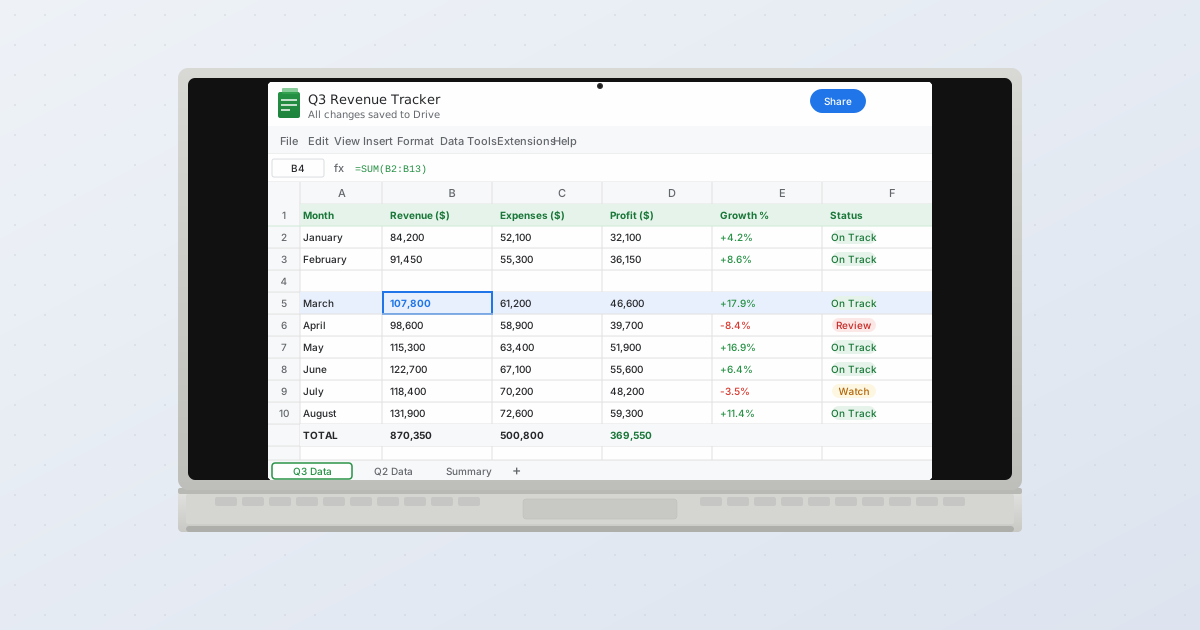
Looking to use Google Sheets on your Mac?
You have multiple options
from the web browser to desktop apps and offline access.
This complete guide covers everything you need to know about running Google Sheets smoothly on macOS.
Whether you're switching from Excel, need offline access, or want a dedicated desktop experience, we'll show you the best ways to use Google Sheets on your Mac.
Quick Answer: 3 Ways to Use Google Sheets on Mac
| Method | Best For | Offline? | Cost |
| Web Browser | Most users | Yes (with setup) | Free |
| Desktop App (PWA) | Desktop-like experience | Yes | Free |
| Third-Party Apps | Power users | Yes | Varies |
Let's explore each option in detail.
Method 1: Google Sheets in Your Web Browser (Recommended)
The easiest and most reliable way to use Google Sheets on Mac is through your web browser.
Setup Steps
- Open your browser (Safari, Chrome, Firefox, or Edge)
- Go to sheets.google.com
- Sign in with your Google account
- Start creating or editing spreadsheets
Pros
- ✅ Always up-to-date with latest features
- ✅ No installation required
- ✅ Works on any Mac (even older models)
- ✅ Seamless collaboration
- ✅ Full feature set
Cons
- ❌ Requires internet connection (unless offline mode is enabled)
- ❌ No dock icon by default
- ❌ Mixed in with other browser tabs
Method 2: Create a Desktop App with Chrome PWA
Turn Google Sheets into a standalone Mac app that lives in your Applications folder.
What Is a PWA?
A Progressive Web App (PWA) makes a website behave like a native app — complete with a dock icon and separate window.
Setup Steps (Chrome)
- Open Chrome and go to sheets.google.com
- Click the three dots (⋮) in the top-right corner
- Select "Save and Share" → "Install Google Sheets"
- Click "Install" in the popup
- Google Sheets now appears as an app in your Applications folder and Dock
Launch as an App
- Click the Google Sheets icon in your Dock or Applications
- It opens in its own window (not a browser tab!)
- Behaves like a native Mac app
Pros
- ✅ Dedicated app icon in Dock
- ✅ Opens in separate window
- ✅ Alt+Tab works independently
- ✅ Feels like a native Mac app
- ✅ Still uses browser engine (always updated)
Cons
- ❌ Requires Chrome or Edge (doesn't work in Safari)
- ❌ Still requires internet unless offline mode enabled
Method 3: Third-Party Desktop Apps
Several third-party apps package Google Sheets for desktop use.
Popular Options
1. Wavebox
- What it is: Multi-account app manager
- Price: Free (limited) / $9.95/mo (pro)
- Best for: Managing multiple Google accounts
- Download Wavebox
2. Station
- What it is: Unified workspace for web apps
- Price: Free / $10/mo (pro)
- Best for: Centralizing all your web apps
- Download Station
3. Rambox
- What it is: Open-source workspace organizer
- Price: Free (open-source)
- Best for: Privacy-conscious users
- Download Rambox
Pros
- ✅ Better organization with multiple apps
- ✅ App-specific settings and shortcuts
- ✅ Enhanced productivity features
Cons
- ❌ Additional software to manage
- ❌ Some require paid subscriptions
- ❌ May use more system resources
How to Enable Offline Access on Mac
Work on spreadsheets without internet — changes sync automatically when you reconnect.
Prerequisites
- Chrome or Edge browser (Safari doesn't support offline mode)
- Google Drive app enabled for offline
Setup Steps
- Install Google Drive for Desktop (optional but recommended)
- Download from google.com/drive/download
- Install and sign in
- Enable Offline Mode in Browser
- Open sheets.google.com
- Click the three lines (≡) menu → Settings
- Toggle "Offline" to ON
- Wait for Files to Sync
- Recent and opened files automatically download for offline access
- You'll see a checkmark icon on synced files
Using Sheets Offline
- Open sheets.google.com even without internet
- Create, edit, and view spreadsheets normally
- Changes sync automatically when you reconnect
- A cloud icon shows sync status
Keyboard Shortcuts for Mac Users
Google Sheets has Mac-specific shortcuts (using Cmd instead of Ctrl).
| Action | Mac Shortcut |
| New spreadshee | Cmd + N |
| Open | Cmd + O |
| Save (auto-saves) | Cmd + S |
| Cmd + P | |
| Undo | Cmd + Z |
| Redo | Cmd + Y or Cmd + Shift + Z |
| Copy | Cmd + C |
| Paste | Cmd + V |
| Find | Cmd + F |
| Find and replace | Cmd + Shift + H |
| Insert link | Cmd + K |
| Bold | Cmd + B |
| Italic | Cmd + I |
| Underline | Cmd + U |
Pro tip: Press Cmd + / to see all available shortcuts.
Syncing with iCloud Drive
Want to store Sheets files locally in iCloud Drive?
How It Works
- Install Google Drive for Desktop
- During setup, choose "Mirror files" or "Stream files"
- Google Drive appears in Finder sidebar
- Your Sheets files are accessible locally
- Open
.gsheetfiles directly from Finder → they open in your browser
Pros
- ✅ Access files through Finder
- ✅ Drag-and-drop to share/organize
- ✅ Works with Spotlight search
- ✅ Integrates with macOS workflow
Google Sheets vs Excel for Mac
Should you use Google Sheets or stick with Excel on Mac?
| Feature | Google Sheets | Excel for Mac |
| Price | Free | $69.99/year (Microsoft 365) |
| Collaboration | Real-time, excellent | Limited, clunky |
| Offline | Yes (with setup) | Yes (native) |
| Advanced formulas | Good | Excellent |
| Add-ons | Many | Fewer for Mac |
| File compatibility | Imports/exports .xlsx | Native .xlsx |
| Performance (large files) | Slower (100k+ rows) | Faster |
| Platform | Cloud-first | Desktop-first |
Bottom line: Use Google Sheets for collaboration and cloud access. Use Excel for complex data analysis or offline-first work.
Troubleshooting Common Issues
Problem: Sheets Is Slow on Mac
Solutions:
- Close unused browser tabs
- Disable unnecessary add-ons
- Reduce spreadsheet size (archive old data)
- Clear browser cache:
Cmd + Shift + Delete - Update your browser to the latest version
Problem: Can't Access Offline
Solutions:
- Use Chrome or Edge (Safari doesn't support offline)
- Enable offline mode in settings
- Check storage space (Mac needs space for cached files)
- Verify Google account permissions
Problem: Copy-Paste Doesn't Work
Solutions:
- Use Mac-specific shortcuts (Cmd, not Ctrl)
- Check browser permissions for clipboard access
- Try right-click → Copy/Paste if shortcuts fail
Best Practices for Mac Users
- Use Chrome for best compatibility — Safari has limited features
- Install as PWA — Get the desktop app experience
- Enable offline mode — Work anywhere, anytime
- Learn Mac shortcuts — Speed up your workflow
- Keep browser updated — New features roll out regularly
- Use Google Drive Desktop — Better file management
Conclusion
Google Sheets works perfectly on Mac through your web browser, as a PWA desktop app, or with third-party tools. The browser method is the simplest and most reliable option for most users.
Recommended setup:
- Use Chrome for full compatibility
- Install Sheets as a PWA for desktop-like experience
- Enable offline mode for flexibility
- Install Google Drive for Desktop for local file access
With this setup, you'll have a powerful, free spreadsheet solution fully integrated into your Mac workflow.