
Google Sheets Invoice Templates: Best Free Options in 2026
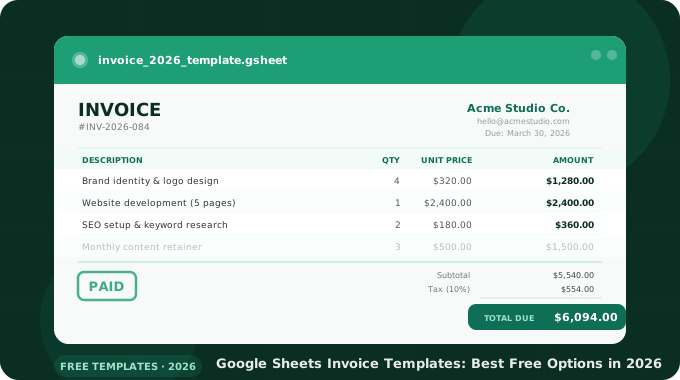
Need to send a professional invoice today?
Google Sheets has you covered, for free!!!
With the right template, you can go from zero to a polished, client-ready invoice in under five minutes, without paying for dedicated invoicing software.
In this guide, we'll cover:
- ✅ The best free Google Sheets invoice templates (with direct links)
- ✅ How to customize any template for your business
- ✅ How to auto-calculate totals, taxes, and discounts
- ✅ Tips for freelancers and small businesses
- ✅ When to upgrade to dedicated invoicing software
Let's get into it.
Quick Answer: Best Google Sheets Invoice Templates
| Template | Best For | Auto-Totals | Tax | Shipping |
| Simple Service Invoice ⭐ | Consultants, agencies | ✅ | ✅ | — |
| Hourly Invoice ⭐ | Freelancers, time billing | ✅ | ✅ | — |
| Product Invoice ⭐ | Retail, e-commerce | ✅ | ✅ | ✅ |
| Google Sheets built-in | Beginners | ✅ | Basic | — |
| Vertex42 Free Invoice | Freelancers | ✅ | ✅ | — |
| Smartsheet invoice | Project billing | ✅ | ✅ | — |
⭐ = Free templates built by us — copy and use instantly.
Why Use Google Sheets for Invoicing?
Before diving into templates, here's why Google Sheets is a legitimate invoicing tool — not just a stopgap:
- Free forever — no subscription, no per-invoice fees
- Always accessible — works in any browser, on any device
- Easy to share — send a link or export as PDF in one click
- Auto-calculations — SUM formulas handle totals, taxes, and discounts automatically
- Fully customizable — add your logo, brand colors, payment terms, anything
- Version history — Google Sheets saves every edit, so you never lose a previous invoice version
- Connected to Google Drive — all invoices organized in one place, searchable, shareable
Limitation to know upfront: Google Sheets does not send invoices automatically, track payment status, or send reminders. For those features, you'd need dedicated invoicing software.
The Best Free Google Sheets Invoice Templates
Our 3 Free Templates — Copy & Use Instantly
We built three professional invoice templates for Google Sheets.
Each one opens directly in your Drive with all formulas pre-built, sample data filled in, and a clean branded layout ready to customize.
Template 1: Simple Service Invoice
Best for: Consultants, agencies, coaches, and any service-based billing
| Column | What it does |
| Description | Service or item name |
| Qty | Number of units |
| Unit Price | Price per unit |
| Amount | Auto-calculated: Qty × Unit Price |
Totals block:
- Subtotal — sum of all line items
- Tax — editable rate (default 10%), applied automatically
- Total Due — highlighted in blue
Features:
- ✅ 8 line item rows (add more by duplicating)
- ✅ Business info header (name, address, email, phone)
- ✅ Bill To section for client details
- ✅ Invoice #, Date, Due Date fields
- ✅ Payment terms & notes footer
- ✅ Export-ready for PDF
📄 Make a copy — Simple Invoice Templates
Template 2: Hourly Invoice
Best for: Freelancers, developers, designers, and anyone billing by the hour
| Column | What it does |
| Task / Work Description | What was done |
| Hours | Time spent (supports decimals, e.g. 1.5) |
| Rate / hr | Hourly rate |
| Amount | Auto-calculated: Hours × Rate |
Extra section:
- Project name and billing period row (above the line items)
Totals block:
- Subtotal — sum of all line amounts
- Tax — editable rate, auto-applied
- Total Due — highlighted in blue
Features:
- ✅ 8 task rows
- ✅ Project name + period fields
- ✅ Same professional header as Simple Invoice
- ✅ Hours formatted to 2 decimal places
📄 Make a copy — Hourly Invoice Invoice
Template 3: Product Invoice
Best for: Retail sellers, e-commerce, wholesale, and product-based businesses
| Column | What it does |
| Item Description | Product name |
| SKU | Product code or reference |
| Qty | Units ordered |
| Unit Price | Price per item |
| Discount | Per-item discount % (e.g. 10%) |
| Line Total | Auto-calculated: Qty × Price × (1 − Discount) |
Totals block:
- Subtotal — sum of all line totals
- Tax — editable rate, auto-applied
- Shipping — editable flat amount
- Total Due — highlighted in blue
Features:
- ✅ 8 product rows
- ✅ Per-item discount column (unique to this template)
- ✅ Shipping line in totals
- ✅ SKU column for inventory tracking
📄 Make a copy — Product Invoice Template
4. Google Sheets Built-In Template Gallery
Best for: Beginners who want to start immediately
Google Sheets has a built-in invoice template available directly from the template gallery — no download or third-party site required.
How to access it:
- Open sheets.google.com
- Click Template Gallery at the top right
- Scroll to the Work section
- Click Invoice
What you get:
- ✅ Clean, professional layout
- ✅ Auto-calculating subtotal, tax, and total
- ✅ Editable company name, logo, and contact fields
- ✅ Line item rows for description, quantity, unit price
- ✅ Notes and payment terms section
Limitation: Only one layout style. No hourly billing or per-item discount columns.
5. Vertex42 Free Invoice Template
Best for: Freelancers needing a clean, flexible template
Vertex42 is one of the most trusted sources for spreadsheet templates. Their free Google Sheets invoice template is widely used and well-maintained.
Features:
- ✅ Professional design with your logo
- ✅ Automatic subtotal, discount, tax, and total calculations
- ✅ Customizable payment terms and due date
- ✅ Works for both products and services
- ✅ Multiple currency support (manual)
How to use: Search "Vertex42 invoice template Google Sheets" — copy the sheet to your Drive and customize.
6. Smartsheet Invoice Template
Best for: Consultants and project-based billing
Smartsheet offers a free Google Sheets-compatible invoice template designed for project and hourly billing.
Features:
- ✅ Hourly rate and hours-worked columns
- ✅ Project name and description fields
- ✅ Tax rate field (applied automatically)
- ✅ Clean, minimal design
- ✅ Easy PDF export
How to Customize a Google Sheets Invoice Template
Step 1: Make a Copy
Never edit the original template. Go to File → Make a copy to create your own editable version saved in your Google Drive.
Step 2: Add Your Branding
- Replace the placeholder logo with your own (Insert → Image → Insert in cell)
- Update the business name, address, phone, and email fields
- Adjust colors to match your brand (Format → Theme or manual cell fill colors)
Step 3: Create an Invoice Numbering System
Add a sequential invoice number in a dedicated cell. A simple system:
- Start at
INV-001 - Increment manually for each new invoice:
INV-002,INV-003 - Or use a formula referencing a master log sheet
Step 4: Save as a Master Template
Once your template is fully branded and set up:
- Create a folder in Google Drive called "Invoice Template"
- Store your blank master there
- For each new invoice: open the master → Make a copy → rename with client name and invoice number
How to Export and Send Your Invoice as a PDF
Sending a Google Sheets link to a client is unprofessional — they could accidentally edit it. Always send as PDF.
Export to PDF:
- Go to File → Download → PDF Document (.pdf)
- In the PDF settings, set:
- Page size: A4 or Letter
- Orientation: Portrait
- Margins: Normal
- Fit to page: On
- Click Export
- Attach the PDF to your email
💡 Pro tip: You can also go to File → Email → Email this file to send the PDF directly from Google Sheets without downloading it first.
Tips for Freelancers and Small Businesses
Tip 1: Use a Consistent Invoice Numbering System
Invoice numbers help with accounting and make it easy to reference specific invoices in client communications. Format: INV-YYYY-001 (e.g., INV-2026-047) makes them sortable by year.
Tip 2: Always Include a Due Date
Vague payment terms lead to late payments. Always specify an exact due date (e.g., "Due: April 15, 2026") rather than just "Net 30".
Tip 3: Add a Late Fee Policy
Include a note at the bottom: "Invoices unpaid after 30 days are subject to a 1.5% monthly late fee." Even if you never enforce it, it speeds up payment.
Tip 4: Keep a Master Invoice Log
Create a separate Google Sheet as an invoice tracker with columns: Invoice #, Client, Amount, Issue Date, Due Date, Paid Date, Status. Link each row to the corresponding invoice file in Drive.
Tip 5: Add a QR Code for Fast Payment
If you accept payments via a link (PayPal, Stripe, bank transfer portal), add a QR code directly to your invoice. Clients can scan it with their phone and pay instantly — no typing required. Use a Google Sheets add-on like QR Code Generator by Irvito to generate the QR code directly inside your spreadsheet.
When Should You Upgrade to Invoicing Software?
Google Sheets is great for getting started, but it has real limits. Consider upgrading when:
| Situation | Recommended Tool |
| You send 10+ invoices/month | FreshBooks, Wave |
| You need automatic payment reminders | QuickBooks, Invoice Ninja |
| You accept online payments built-in | Stripe Invoicing, PayPal Invoicing |
| You need recurring invoices | FreshBooks, Zoho Invoice |
| You want accounting integration | QuickBooks, Xero |
| You need client portal | HoneyBook, Dubsado |
Free alternatives to paid software:
- Wave — fully free invoicing with payment acceptance (takes a % per transaction)
- Invoice Ninja (free tier) — up to 20 clients, unlimited invoices, payment integrations
- Zoho Invoice — free for up to 1,000 invoices/year
Frequently Asked Questions
Are Google Sheets invoice templates free?
Yes. All Google Sheets invoice templates — including the built-in template gallery and third-party templates from Vertex42, Smartsheet, and HubSpot — are completely free to copy and use with any Google account.
Can I send a Google Sheets invoice directly to a client?
Yes, but best practice is to export it as a PDF first (File → Download → PDF). Sending a Sheets link risks the client accidentally editing your invoice. PDF also looks more professional.
Does Google Sheets automatically calculate invoice totals?
Yes, if the template includes SUM formulas. Most templates auto-calculate line totals (quantity × price), subtotal, tax, and grand total. If you build your own, add formulas to the totals cells manually.
Can I add my logo to a Google Sheets invoice?
Yes. Go to Insert → Image → Insert in cell or Insert over cells. Upload your logo file and resize it to fit the header area of your invoice.
How do I number invoices in Google Sheets?
Manually increment the invoice number each time you create a new invoice (INV-001, INV-002, etc.), or maintain a separate invoice log sheet and reference the next number from there. There is no automatic invoice numbering built into Google Sheets.
Can I accept payments through a Google Sheets invoice?
Not natively. Google Sheets cannot process payments directly. Include your payment details (bank transfer, PayPal link, Stripe link) in the invoice notes section, or add a QR code linking to your payment page.
Is Google Sheets good enough for invoicing a business?
For low invoice volume (1-20/month), Google Sheets is perfectly sufficient. It produces professional PDFs, handles all calculations, and costs nothing. For higher volume or if you need payment tracking and reminders, dedicated invoicing software is worth the investment.
Conclusion
Key takeaways:
- Free and ready now — Google Sheets' built-in template gallery has a solid invoice template accessible in seconds
- Best for low volume — ideal for freelancers and small businesses sending fewer than 20 invoices/month
- Always export as PDF — never send a raw Sheets link to a client
- Add a QR code — link your payment page directly in the invoice for faster payment
- Upgrade when needed — Wave, Invoice Ninja, and Zoho Invoice are strong free alternatives when you outgrow Sheets
Google Sheets won't replace QuickBooks for a 50-person company — but for anyone starting out or keeping things lean, it's one of the most underrated invoicing tools available.
Start with the free built-in template today: Open sheets.google.com, click Template Gallery, and search "Invoice".